Flood Blueprint
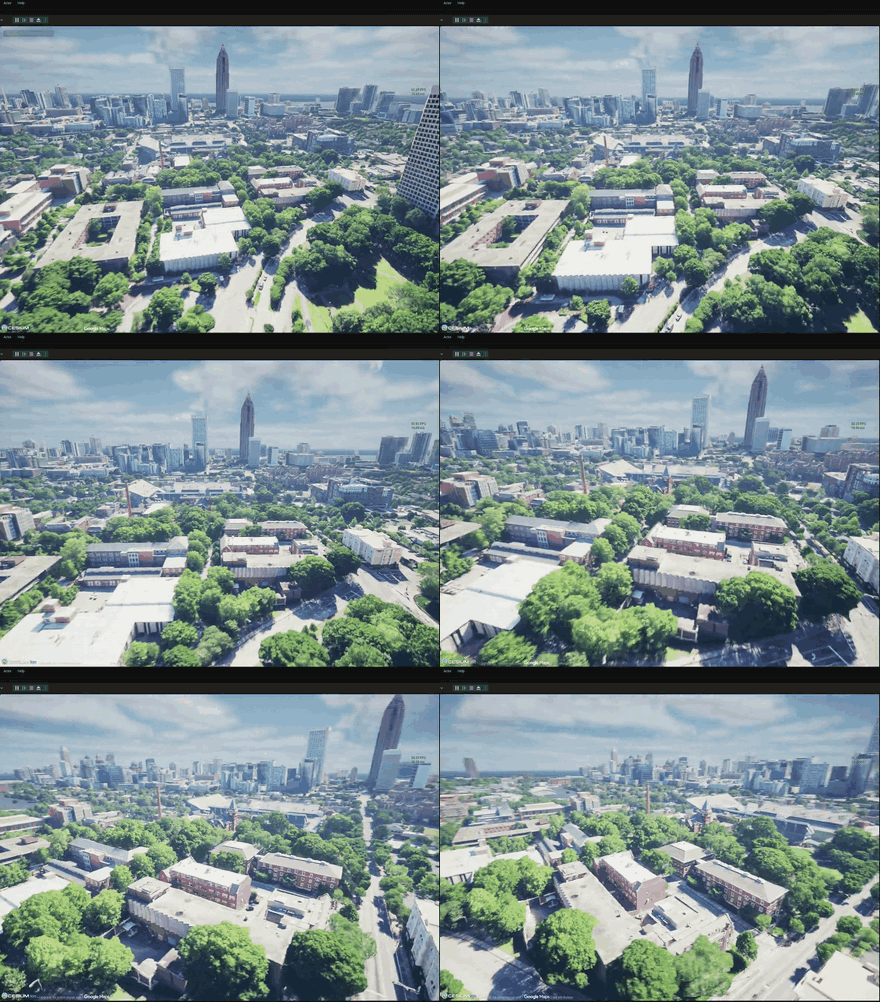
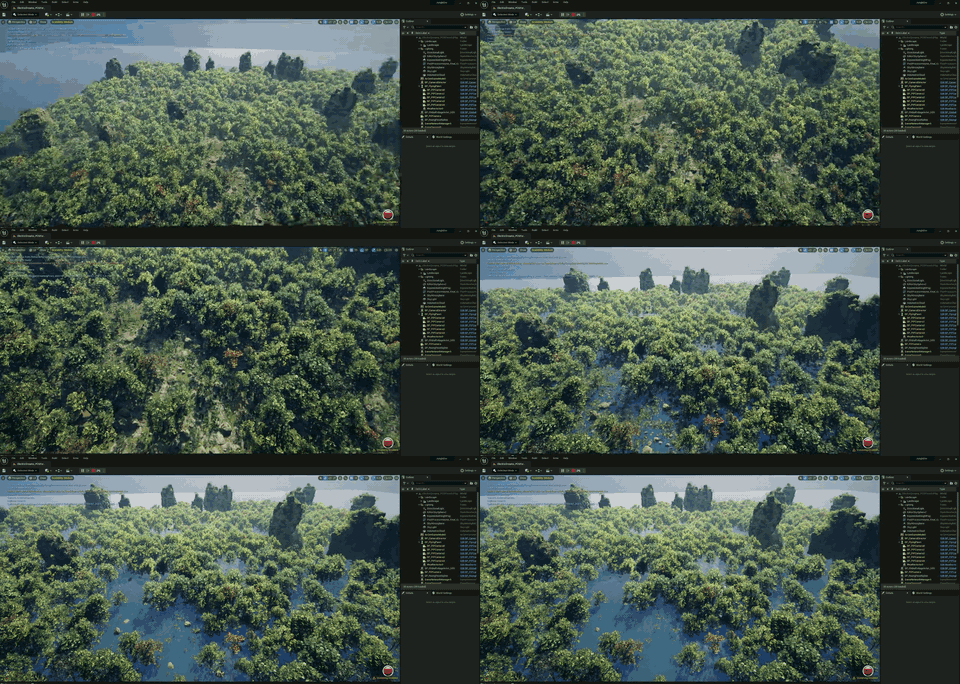
The Flood Blueprint is a custom, parameterized Unreal Engine Blueprint that simulates rising water and flood inundation across terrain at runtime — including over georeferenced Cesium for Unreal city models. This page covers how to download it and use it in your own Unreal project.
Download
Package being finalized
The Flood Blueprint will be published as a Blueprint package on the HERCULES releases page. Until the zip lands, this page already documents the requirements, install procedure, and sensor integration.
The package contains the HERCULES-authored Blueprints and support assets only; third-party content is linked, not shipped — see Using Blueprint Packages.
Requirements
| Requirement | Notes |
|---|---|
| Unreal Engine 5.2.1 | Version HERCULES is built against |
| HERCULES AirSim plugin | For sensing integration (install) |
| Cesium for Unreal plugin | Only for flooding georeferenced city models; free |
Install into your Unreal project
Follow the general steps in Using Blueprint Packages:
- Download and unzip the Blueprint package, and copy the contained folder into your project's
Content/. - For city-scale floods, install and configure Cesium for Unreal with your georeferenced tileset.
- Restart the Unreal Editor and assign any unset asset slots (water material) in the Details panel.
Usage
- Drag the flood Blueprint actor into your level and position the water volume.
- Configure the target water level, rise rate, and extent.
- Play / run the simulation — the water level updates the shared world state at runtime and is observable by all robots.
Parameters
| Parameter | Description | Default |
|---|---|---|
| Target water level | Final flood height | — |
| Rise rate | How fast the water rises | — |
| Extent | Region covered by the flood | — |
Sensor integration
- The rising water is directly visible to the RGB, depth, and night-vision cameras; depth captures make the inundation extent measurable.
- Water has no keyword in the thermal camera's classifier and defaults to neutral (295 K). To render it distinctly cool in LWIR, register the water actor with the instance segmentation system and add an override:
"SyntheticCameraSettings": {
  "ThermalIR": { "Overrides": [ { "Match": "flood", "TempK": 288.0, "Emissivity": 0.96 } ] }
}
See the Dynamic Environmental Phenomena overview for all phenomena in context.